How to Secure Your Smart Home From Hackers: Passwords, 2FA, Guest Networks and Camera Privacy
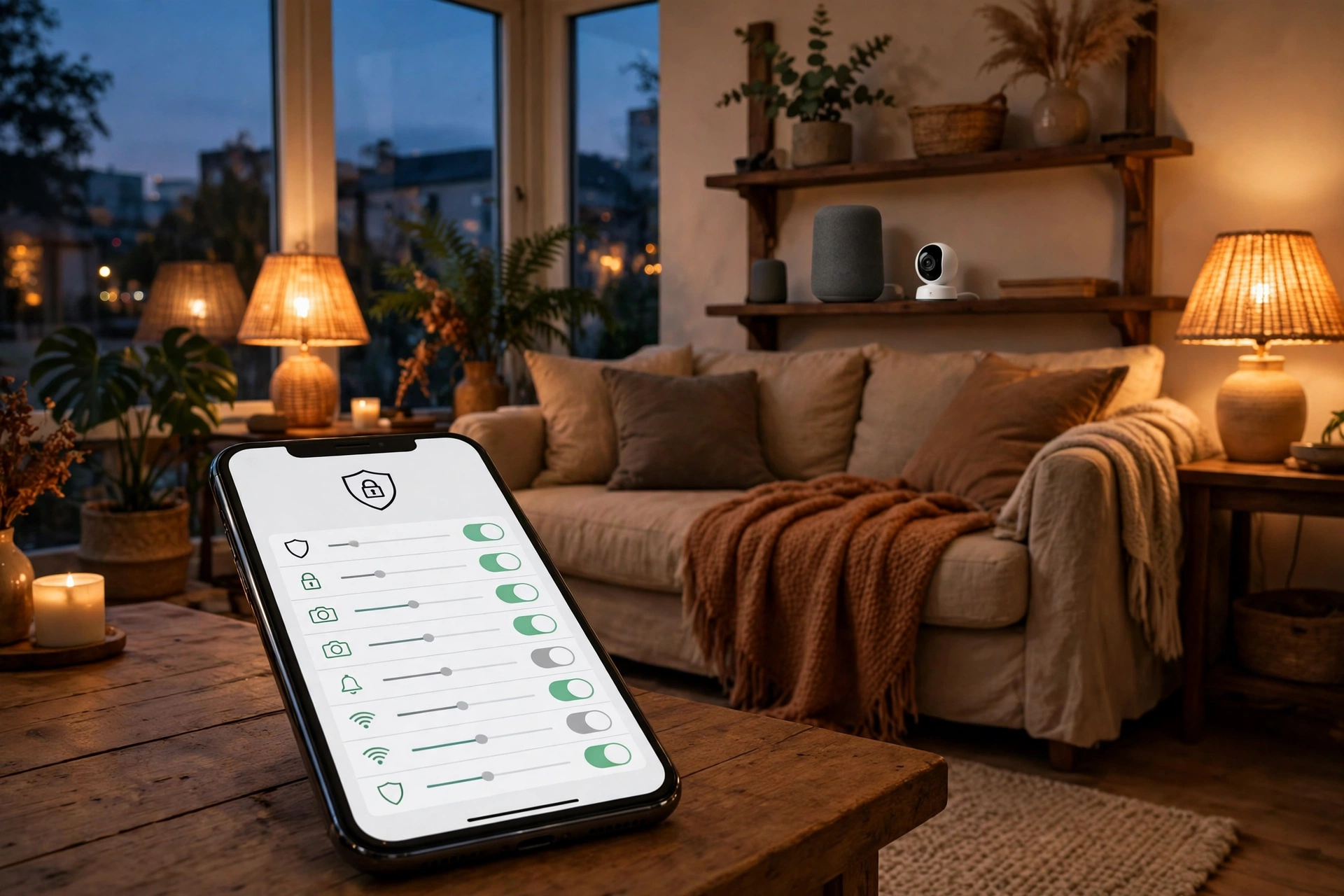
Every smart device in your home is a small computer connected to the internet, and every computer connected to the internet can, in principle, be attacked. That sounds alarming, but the practical reality is reassuring: most smart-home attacks do not involve brilliant hacking. They involve weak passwords, reused passwords, old software, and devices left on their default settings. Fix those basics, and you remove the easiest ways in.
This guide is for any household in the United States with smart lights, speakers, cameras, locks, or thermostats. It focuses on digital hardening, meaning the accounts, passwords, networks, and settings that protect your devices. It is not a guide to buying alarms, cameras, or other physical security equipment, although the camera privacy section does cover cameras you already own. Work through it in order, starting with the steps that protect everything at once, and you will have a noticeably safer home by the end of the day.
No security guide can promise complete safety, and this one does not. New vulnerabilities are found regularly, and manufacturers vary in how quickly they fix them. What this guide does is raise the effort required to attack your home well above the level of the automated, opportunistic attacks that cause most harm.
Start With Your Accounts: Passwords and Two-Factor Authentication
Your smart-home accounts are the master keys to your home. If someone gains access to your voice assistant account, your camera account, or your smart-home app account, they may be able to see cameras, unlock doors, or control devices. Protecting those accounts is therefore the single most important step in this guide.
Use a unique, long password for every smart-home account, and never reuse a password from your email or banking. A password manager makes this practical: it creates and remembers a different strong password for each service, so you only need to remember one master password. If a password manager feels like too much change at once, start with your three most important accounts, namely email, your voice assistant, and your camera or security app, and expand from there.
Turn on two-factor authentication, often called 2FA, wherever it is offered. With 2FA, signing in requires both your password and a second proof, such as a code from an authenticator app or a prompt on your phone. An authenticator app is generally stronger than a code sent by text message, because text messages can be intercepted in some attacks. Even text-message 2FA is far better than no 2FA at all, so enable whatever option your service offers.
Finally, review who has access to your accounts. Remove old housemates, former partners, and unused family profiles, and check whether any account is still signed in on a phone or tablet you no longer use. Access that made sense a year ago may not make sense now, and every extra account with access is an extra way in.
Give Your Devices Their Own Network
Your home Wi-Fi network probably carries everything: laptops, phones, work computers, and dozens of smart devices. That mixing is convenient, but it means a compromised smart bulb or camera sits on the same network as the computer holding your taxes and family photos. Separating them limits the damage if any one device is compromised.
The simplest separation is a guest network. Most modern routers can create a second Wi-Fi network with a different name and password. Put your smart-home devices on that network, and keep your computers and phones on the main network. Guests can also use the guest network, which is a bonus, because a visitor’s infected phone then has no direct path to your computers either.
A more thorough option, if your router supports it, is a separate network segment for smart devices, sometimes called a VLAN or an IoT network. This gives you finer control, such as blocking smart devices from talking to each other unless they need to, or blocking them from reaching the internet except through approved services. It is more complex to set up, and it can break features that rely on devices discovering each other, so try the guest network first and move to this only if you are comfortable with router settings.
Whichever approach you choose, give the smart-device network a strong, unique Wi-Fi password, and do not use the default router admin password. Change the router’s admin password, keep a note of both passwords in your password manager, and write down what you changed so a future troubleshooting session does not undo your work by accident.
Keep Firmware and Apps Updated
Software updates are unglamorous, but they are one of the most effective security habits you can adopt. When a manufacturer finds a vulnerability in a camera, speaker, or thermostat, the fix arrives as a firmware update for the device or an update to its app. A device that never updates stays vulnerable to every flaw found since it was made.
Turn on automatic updates wherever your devices and apps offer them. Check the settings in each smart-home app, and in your router’s admin panel, because router updates are easy to forget and routers protect everything behind them. If a device offers no automatic update option, set a monthly reminder to check for updates manually, and do the same for any device you rarely open the app for.
Updates also have a second benefit: they are a signal about the manufacturer. A company that updates its devices regularly is actively maintaining them, while a device that has not received an update in years may be abandoned. When you buy new devices, prefer makers with a track record of updates, and consider replacing very old devices that no longer receive security fixes, especially cameras and devices that face the internet directly.
Change Defaults and Turn Off What You Do Not Use
Many smart devices ship with default usernames, default passwords, or features enabled that most households never use. Attackers know these defaults, and automated attacks try them first. During setup, change any default password immediately, and if a device asks you to create an account, use the unique password and 2FA habits from the first section.
Next, review each device’s features and turn off anything you do not use. Remote access is the most important one: if you never check a camera or control a device while away from home, consider whether remote access needs to be on at all. Similarly, features such as universal plug-and-play on a router, open ports, and unused integrations with other services all widen the surface an attacker can reach. Turning off an unused feature costs you nothing if you were not using it, and it removes a potential entry point.
Also review permissions in the companion apps on your phone. A smart-home app rarely needs your contacts, location all the time, or access to your photos, unless a specific feature requires it. Limit permissions to what each feature genuinely needs, and revisit them after app updates, which sometimes reset or expand permissions.
Camera and Microphone Privacy: Settings That Actually Matter
Cameras and microphones deserve their own section, because they capture the most sensitive parts of your home life. Start with placement: do not put cameras in bedrooms or bathrooms, and think carefully about cameras pointed at living areas where family conversations happen. A camera that watches the front door protects your home; a camera that watches your living room all day collects far more personal information for the same security benefit.
Use physical controls where they exist. Many cameras and displays have a physical shutter or a microphone mute switch. A shutter you can see is more reassuring than a software setting, because it does not depend on the software working correctly. Make it a habit to close shutters or mute microphones in rooms where you want privacy, such as during a private conversation or when guests are staying over.
Review recording and storage settings in each camera app. Decide whether clips should be stored in the cloud, locally, or not at all, how long they should be kept, and who can view them. Shorter retention is generally safer, because there is less history to expose if an account is compromised. Also check sharing settings, and remove any shared access for people who no longer need it. If you use cameras as part of a wider security setup, our guide to home security systems with no monthly fee and to video doorbells without a subscription explains the subscription side in general terms.
What to Do If You Suspect a Device Is Compromised
Even careful households can have a scare: a camera moves unexpectedly, a device behaves oddly, or you receive a login alert you do not recognize. Do not panic, but do act promptly. First, change the password for that device’s account and for your email account, and turn on 2FA if it is not already on. Then check the account’s sign-in history and signed-in devices, and sign out any session you do not recognize.
Next, update the device’s firmware, restart it, and review its settings for changes you did not make, such as new users, new sharing links, or changed recording settings. If the odd behavior continues, disconnect the device from your network until you can contact the manufacturer’s support team. For a camera, cover the lens while you investigate, which is a simple step that immediately protects your privacy.
Finally, treat a compromise as a prompt to review the whole system, not just one device. If one password was reused across services, change it everywhere. If your network was not separated, this is a good moment to set up that guest network. A single incident, handled calmly, often leaves a home considerably safer than it was before.
Your One-Day Security Checklist
| Step | What to do | Time needed |
|---|---|---|
| Accounts | Unique passwords, 2FA on key accounts | About an hour |
| Network | Smart devices on a guest network | About 30 minutes |
| Updates | Automatic updates on, router updated | About 20 minutes |
| Defaults | Change defaults, turn off unused features | About 30 minutes |
| Cameras | Shutters, retention, sharing reviewed | About 20 minutes |
| Review | Remove old users, check signed-in devices | About 20 minutes |
You do not need to finish this checklist in one sitting, but the order matters. Accounts first, because they protect everything; network second, because it limits damage; and the rest in any order that suits your evening. Set a calendar reminder to repeat the review every few months, because new devices, new housemates, and new app updates quietly undo good settings over time.
For the wider context of how your devices connect, see our guides to Matter, Thread border routers, and the 10 best smart home devices, and for voice-assistant privacy settings, see our comparison of Google Home vs Alexa vs HomeKit.
Frequently Asked Questions
What is the single most important smart-home security step?
Protect your accounts. Use a unique, long password for each smart-home service and turn on two-factor authentication, especially for email, your voice assistant, and any camera app. Most attacks succeed through accounts, not through breaking encryption.
Should smart devices be on a separate Wi-Fi network?
Yes, if your router allows it. A guest network for smart devices keeps a compromised bulb or camera away from your computers and phones, which limits the damage. It is one of the highest-value steps in this guide for the time it takes.
How often should I update smart-home devices?
Enable automatic updates wherever possible, and check manually once a month for devices without that option. Include your router in this habit, because it protects every device behind it and is easy to forget.
Are smart cameras safe to have inside the home?
They can be, with care. Avoid bedrooms and bathrooms, use physical shutters and microphone mutes where available, keep recordings for as short a time as practical, and protect the camera account with a unique password and 2FA. If a camera makes you uneasy in a room, move it to an entry point instead.
Does two-factor authentication really help?
Yes, greatly. Even if an attacker learns your password, 2FA requires a second proof, such as a code from your phone, which they usually do not have. An authenticator app is stronger than text-message codes, but any 2FA is far better than none.
What should I do with old smart devices I no longer use?
Remove them from your accounts and apps, factory-reset them before giving them away or recycling them, and disconnect them from your network. A forgotten device still connected to your Wi-Fi is an easy target, because it is also the device least likely to be updated.