Echo Show vs Nest Hub: Which Smart Display Belongs in Your Kitchen?
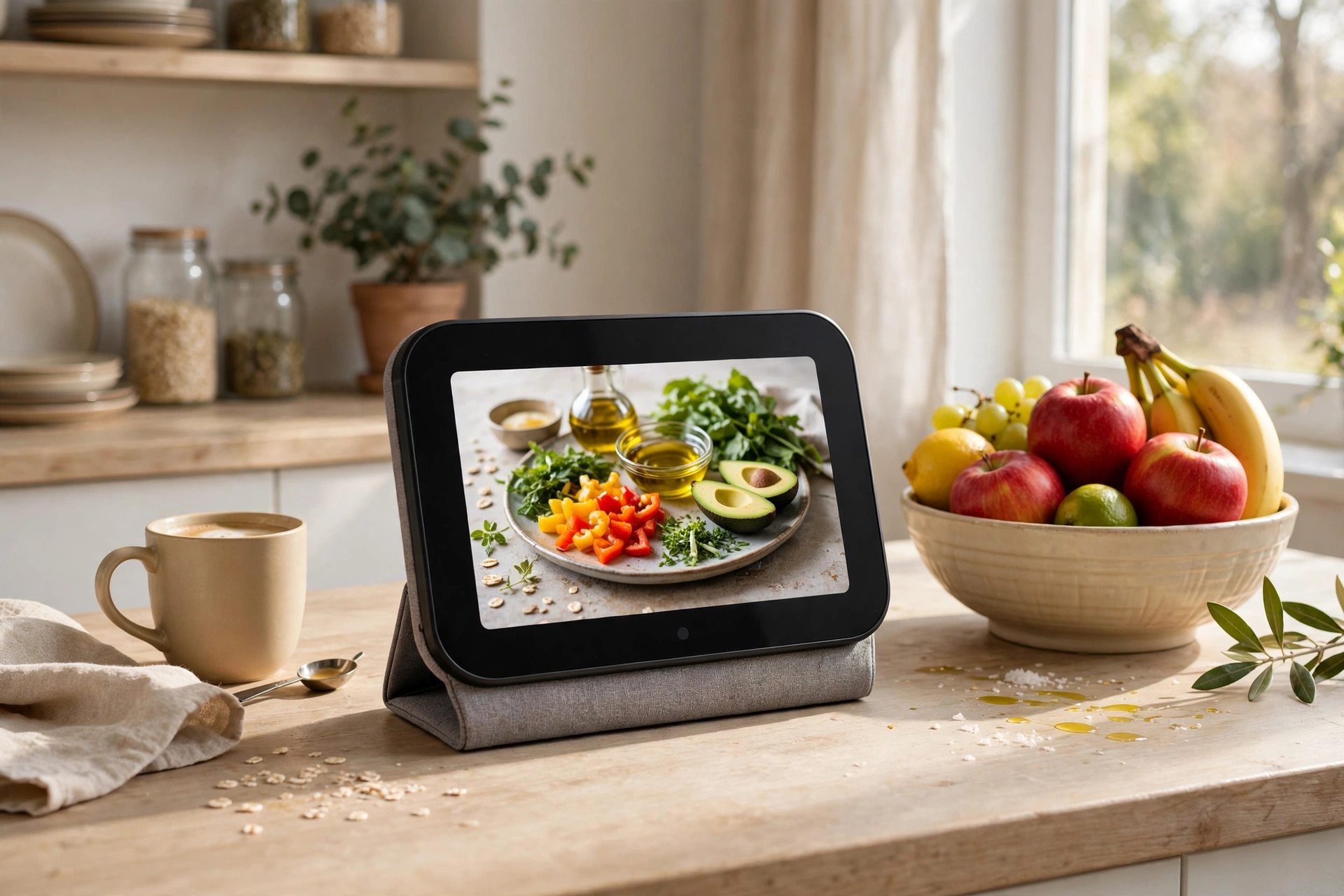
A smart display is a voice speaker with a screen, and in the kitchen that screen changes everything. It can show a recipe step by step, run a timer you can see from across the room, play music or a news briefing while you cook, and show who is at the front door. It can also become the control panel for your lights, thermostat, and other smart devices, without anyone having to find a phone with messy hands.
This comparison is for households in the United States choosing between the two best-known smart display families: Echo Show and Nest Hub. It looks at kitchen use first, then cameras and privacy, voice assistants, smart-home control, and the smaller details that matter day to day. No product has been tested for this guide, and models, sizes, and features vary within each family, so verify current specifications for the exact model you are considering before you buy.
What a Kitchen Smart Display Actually Does
Think of a kitchen display as three devices in one. It is a hands-free assistant you can talk to while chopping, a small television for recipes and video, and a touch panel for your smart home. The best kitchen use is the one that saves you from touching a phone: asking for a timer, checking a recipe step, or turning on the lights over the island while your hands are busy.
Size matters more in a kitchen than in most rooms. A larger screen is easier to read from a few steps away and better for following a recipe or watching a video, but it also takes up more counter space and can dominate a small kitchen. A smaller display fits neatly under cabinets or in a corner, but reading it from across the room is harder. Measure your counter, think about where outlets are, and decide whether the display will be a centerpiece or a quiet helper.
Both families also work as photo frames when idle, showing family pictures or artwork. That sounds like a small detail, but a kitchen display is on all day, and a screen that shows something pleasant is much easier to live with than a blank black rectangle.
The Kitchen Test: Recipes, Timers, and Messy Hands
For recipes, both types of display can show ingredients and steps, read instructions aloud, and set multiple timers. The practical differences are in how recipes are found and displayed. One family leans on its own recipe partners and video services, while the other leans on web search and its own video platform. If you already cook from a particular app or video service, check that it works well on the display you choose, because a recipe feature that does not include your favorite source will frustrate you quickly.
Timers and reminders are where a screen earns its keep. A visible countdown for the oven, another for the pasta, and a reminder to take something out of the freezer are all easier to manage when you can see them at a glance. Voice control means you can set them without washing and drying your hands first, which is a real benefit when you are handling raw ingredients.
Video calls and video watching are a secondary kitchen use for many families. A display can keep a grandparent on screen while you cook, or play a show during a long prep session. Camera placement and screen angle matter here, and a display that tilts or sits at eye level on a stand will be more comfortable for calls than one lying flat on the counter.
Cameras and Privacy: The Biggest Real Difference
This is where the two families differ most clearly, and it deserves careful thought before you buy. Some Echo Show models include a camera, which enables video calls and lets the display double as a room camera. Some Nest Hub models have no camera at all, by design, which many people prefer in a kitchen or bedroom. Other models in each family vary, so the camera question is really a model question, not just a brand question.
A camera in the kitchen can be useful for video calls and for checking in on the room, but it also means a camera is pointed at one of the most lived-in rooms in your home. If that bothers you, choose a model without a camera, or a model with a physical camera shutter you can close. A software mute button is helpful, but a physical shutter you can see is more reassuring, because you do not have to trust a setting to know the camera is covered.
Microphones deserve the same thought. Every smart display listens for a wake word, and both families offer a physical microphone mute switch. Make it a household habit to know where that switch is, and to use it when you want the room truly private, such as during a sensitive conversation. Also review the voice history and privacy settings in the companion app after setup, and decide how long recordings, if any, should be kept. Defaults are not always the choice you would make yourself.
Voice Assistants: Alexa and Google Assistant in Daily Life
An Echo Show runs Alexa, and a Nest Hub runs Google Assistant. If you already use one assistant on your phone or speakers, staying with the same assistant usually makes life simpler. Your timers, reminders, shopping lists, and smart-home routines carry over, and you do not have to learn a second way of phrasing requests.
In general terms, Alexa has a long history in the smart home and a very wide range of compatible devices and skills, which are add-on capabilities. Google Assistant has deep strengths in search, questions, and understanding natural phrasing, and it fits naturally for households that already use Google services for mail, calendars, and photos. Neither advantage is absolute, and both assistants handle the core kitchen jobs, such as timers, music, and weather, perfectly well.
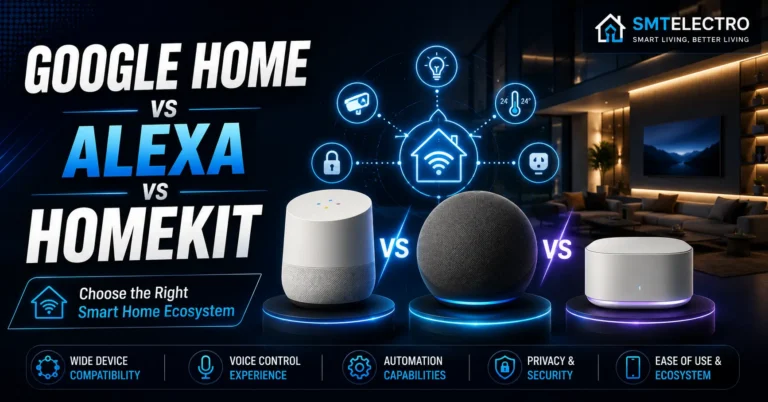
The deciding factor is often the rest of your home. If your lights, locks, and plugs already work best with one assistant, a display from the same family will usually control them most smoothly. For a broader comparison of the major assistants, see our guide to Google Home vs Alexa vs HomeKit.
Smart-Home Control and Hub Roles
A kitchen display is often the most convenient smart-home controller in the house, because it is always on, always in the same place, and easy for guests and children to use. Both families let you control lights, plugs, thermostats, and locks by voice or touch, and both can show camera feeds from compatible doorbells and cameras. If you are building a camera setup without ongoing fees, our guide to the best video doorbells without a subscription and to home security systems with no monthly fee may help you think about the wider system.
Hub roles are more technical, and they matter if you are buying newer devices. Some display models include radios for smart-home protocols such as Zigbee or Thread, letting the display act as a hub or border router for compatible devices. Others do not, and need a separate hub. This varies by model, not just by family, so check the specifications of the exact model you want. If you plan to add many sensors, locks, or Matter devices, a display with the right hub radios can simplify your setup considerably. Our guides to Matter and Thread border routers explain these standards in plain English.
Sound quality is another hub-adjacent detail. A kitchen is noisy, with running water, extractor fans, and conversation, so a display with a fuller speaker will be easier to hear for music and spoken answers. Smaller displays tend to sound thinner, which is fine for timers and news but less satisfying for music while you cook.
Everyday Details: Photos, Accounts, and Multiple People
A kitchen display is a shared device, and shared devices need shared rules. Both families support multiple user profiles and voice recognition to varying degrees, so one person’s calendar, messages, and music can stay separate from another’s. Set this up early, especially if children will use the display, and review what a guest or child can access by voice, including shopping, calls, and smart-home controls.
Photos are a quiet delight on both types of display. One family draws naturally on its photo service, showing albums and memories, while the other does the same with its own photo platform. If your family photos live in one service, that may tip the balance, because a display that shows your own pictures feels personal in a way a generic slideshow does not.
Accounts and subscriptions also matter. Some features, such as certain music or video services, require a subscription you may already have or may need to add. Check what is included free, what needs a subscription, and whether the display works well without paying extra. A display that constantly nudges you toward a subscription is annoying in a room you use every day.
Comparison Table
| Feature | Echo Show family | Nest Hub family |
|---|---|---|
| Voice assistant | Alexa | Google Assistant |
| Camera | On many models, with shutter on some | Absent on some models, by design |
| Kitchen strengths | Wide device and skill range, video calls | Search, recipes from the web, photo display |
| Smart-home hub | Hub radios on some models | Hub radios on some models |
| Best for | Alexa households, video calling | Google households, camera-free rooms |
Read this table as a family overview, not a model verdict. Within each family, screen size, camera, speaker quality, and hub radios all vary, and the right model for a small apartment kitchen may differ from the right model for a large family kitchen.
Which Should You Choose?
Choose an Echo Show if your home already runs on Alexa, if video calling from the kitchen matters to you, or if you want the widest range of compatible devices and add-on skills. It fits naturally as the kitchen hub of an Alexa household, and its camera models suit families who want video calls from the counter.
Choose a Nest Hub if your home already runs on Google Assistant, if you want a display without a camera in a private room, or if your photos and daily services already live with Google. It fits naturally as the kitchen hub of a Google household, and its camera-free models suit people who want a screen without a lens in the room.
If you are starting from scratch with no assistant loyalty, decide on three questions: Do you want a camera in the kitchen? Which photo and music services do you already use? And which assistant do your other smart devices already work best with? Answer those, check the exact model’s specifications, and the choice usually becomes clear. Either family can be an excellent kitchen companion once it matches your household, and neither requires you to replace the rest of your smart home to enjoy it.
Frequently Asked Questions
Do I need a camera on a kitchen smart display?
No. A camera is useful mainly for video calls and for using the display as a room camera. If you do not make video calls from the kitchen, or you prefer no camera in a lived-in room, choose a camera-free model or one with a physical shutter you can close.
Which display is better for recipes?
Both handle recipes, timers, and step-by-step instructions well. The difference is usually which recipe and video sources each family supports best, so check that your favorite cooking sources work well on the model you choose before you buy.
Can a smart display replace a smart-home hub?
Sometimes. Some models include hub radios for protocols such as Zigbee or Thread, while others need a separate hub. Check the exact model’s specifications, especially if you plan to add sensors, locks, or Matter devices.
Is it safe to have a listening device in the kitchen?
Both families offer a physical microphone mute switch and privacy settings in their apps. Use the mute switch when you want the room private, review voice history settings after setup, and set up separate profiles so children and guests cannot access your personal information by voice.
Can children use a kitchen smart display safely?
Yes, with setup. Create child or household profiles where available, review what can be ordered or accessed by voice, and place the display where you can see how it is being used. A kitchen display is a shared device, so its rules should be household rules.
Do I need a subscription to use a smart display?
No, the core features such as timers, weather, voice control, and basic smart-home control generally work without one. Some music, video, and premium features may need a subscription, so check what is included before you buy.